
Last updated on 13 April, 2026.
If your Fortnite game is slowing after the most recent PC update, you’re not alone. Many gamers report unexpected FPS dips, stuttering, or input delays following a new patch, particularly in Chapter 5 updates.
What is the good news? This problem is typically caused by transient issues such as a shader cache reset, outdated drivers, or wrong settings, rather than by your PC hardware.
In this article, I’ll lead you through proven changes that will still work in 2026, ranging from minor modifications to complex improvements. If you’re also facing communication issues, check our Fortnite Voice Chat Not Working Fix (2026 Guide) to resolve voice problems quickly.
- Fortnite Lag After Update Fix PC
- Minimum & Recommended PC Requirements (2026)
- Method 1 – Update Graphics Drivers (Most Important Fix)
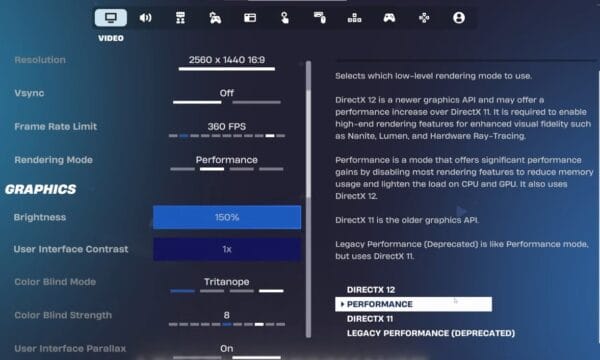
- Method 2 – Enable Performance Mode (Best for Low-End PCs)
- Method 3 – Lower In-Game Graphics Settings (Pro Settings)
- Method 4 – Verify Game Files
- Method 5 – Clear Shader Cache (Advanced Fix)
- Method 6 – Close Background Apps & Overlays
- Method 7 – Optimize Windows for Gaming
- Method 8 – Fix Internet Lag (Ping Issues)
- Method 9 – Reinstall Fortnite (Last Option)
- Common Mistakes to Avoid
- Pro Tips to Boost FPS After Every Update
- Additional Fortnite Fixes You Should Know
- Conclusion
- FAQs (Fortnite Lag Fix PC)
Fortnite Lag After Update Fix PC
Why is Fortnite lagging after an update on PC?
Fortnite may lag after an update due to outdated GPU drivers, shader cache rebuilding, high graphics settings, background programs, or temporary server overload.
Quick fix:
- Update your graphics driver.
- Enable Performance mode.
- Lower the graphical settings.
- Verify the game files.
- Close background applications.
Understanding the cause helps you fix the issue faster.
1. Shader Cache Reset
After every update, Fortnite rebuilds shader files. This can cause:
- stuttering
- FPS drops
- lag spikes
2. Outdated GPU Drivers
New updates are optimized for the latest drivers. If you’re using old ones:
- performance drops significantly
3. Graphics Settings Reset
Sometimes updates reset your settings to higher values, causing lag on low-end PCs.
4. Server Overload
At the start of a new season, millions of players join at once, causing:
- lag
- high ping
- delay
In some cases, lag comes with connection problems—learn how to fix it in our Fortnite stuck on connecting screen fix guide
Minimum & Recommended PC Requirements (2026)
Before implementing fixes, ensure that your PC matches the fundamental requirements.
Minimum:
- CPU: Core i3 / Ryzen 3
- RAM: 8GB
- GPU: Intel HD 4000 / Vega 8
Recommended:
- CPU: Core i5 / Ryzen 5
- RAM: 16GB
- GPU: GTX 1650 or higher
If your PC is close to minimum specs, you must use Performance Mode.
Method 1 – Update Graphics Drivers (Most Important Fix)
This is the #1 fix for Fortnite lag after updates.
Why it works:
New Fortnite patches are optimized for the latest GPU drivers.
Steps:
- Open NVIDIA GeForce Experience or AMD Software
- Check for updates
- Download and install the latest drivers
- Restart your PC
This alone can fix FPS drops and stuttering instantly
Method 2 – Enable Performance Mode (Best for Low-End PCs)
Performance Mode is a game-changer.
Benefits:
- Higher FPS
- Reduced lag
- Faster rendering
How to enable:
- Open Fortnite
- Go to Settings
- Scroll to Rendering Mode
- Select Performance Mode (Alpha)
- Restart the game
Ideal for low and mid-range PCs
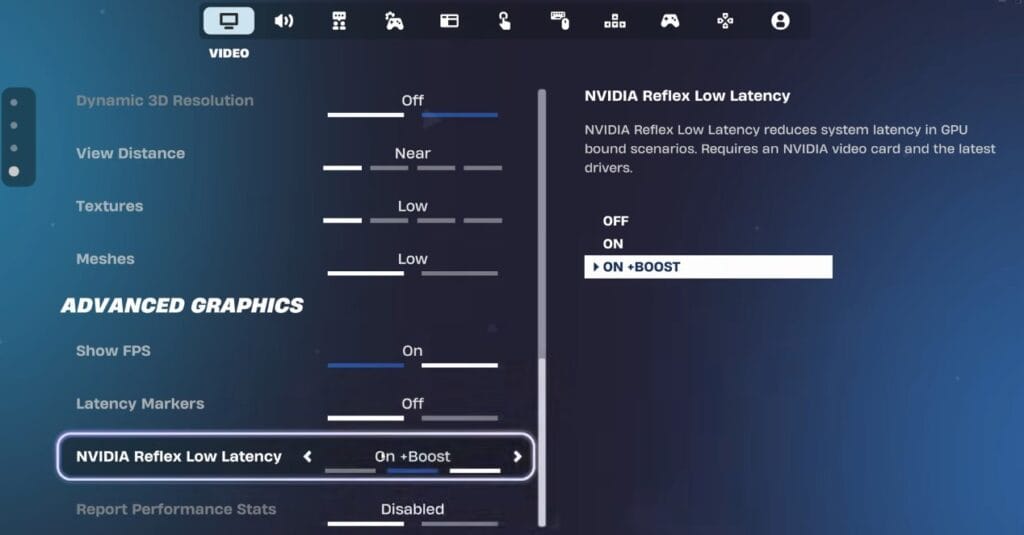
Method 3 – Lower In-Game Graphics Settings (Pro Settings)
Using competitive settings can double your FPS.
Best settings:
- View Distance: Medium
- Shadows: Off
- Anti-Aliasing: Off
- Textures: Low
- Effects: Low
- Post Processing: Low
These settings reduce GPU load and improve performance significantly.
Method 4 – Verify Game Files
Updates sometimes corrupt game files.
Fix steps:
- Open Epic Games Launcher
- Go to the Library
- Click the three dots next to Fortnite
- Click Verify
This will fix missing or broken files, causing lag.
Method 5 – Clear Shader Cache (Advanced Fix)
This is one of the most underrated fixes.
Why it works:
Clearing the shader cache removes corrupted data and rebuilds fresh files.
Steps (NVIDIA):
- Open NVIDIA Control Panel
- Manage 3D Settings
- Turn Shader Cache OFF → Restart → ON
Windows method:
- Delete the DirectX shader cache from Disk Cleanup
This can fix micro-stuttering instantly
Method 6 – Close Background Apps & Overlays
Background apps consume RAM and CPU.
Apps to close:
- Chrome (very heavy)
- Discord overlay
- Xbox Game Bar
- Steam (if running)
Tip:
Use Task Manager (Ctrl + Shift + Esc) to end unnecessary tasks.
Method 7 – Optimize Windows for Gaming
Small tweaks can make a big difference.
Do this:
- Enable Game Mode
- Set Power Plan to High Performance
- Disable startup apps
- Turn off unnecessary services
These improve overall system performance.
Method 8 – Fix Internet Lag (Ping Issues)
Sometimes it’s not FPS—it’s network lag.
Fixes:
- Use Ethernet instead of Wi-Fi
- Restart your router
- Select the correct server region in Fortnite
This reduces ping and improves responsiveness.
Method 9 – Reinstall Fortnite (Last Option)
If nothing works, reinstalling can fix deep issues.
Steps:
- Uninstall Fortnite
- Restart PC
- Reinstall from the Epic Games Launcher
Use this only if all other methods fail. Once your game runs smoothly, choosing the right drop spot also matters—check out the Best Fortnite Landing Spots for High Loot in Chapter 5
Common Mistakes to Avoid
Avoid these errors that make lag worse:
- Playing on ultra settings on a low-end PC
- Ignoring driver updates
- Running heavy apps in the background
- Not restarting PC after updates
Pro Tips to Boost FPS After Every Update
Want smooth gameplay every season? Follow these:
- Always update GPU drivers
- Use Performance Mode
- Clear cache regularly
- Keep background apps closed
- Optimize settings after every update
Additional Fortnite Fixes You Should Know
If you’re facing other issues, check these guides:
- Fortnite Voice Chat Not Working Fix (2026 Guide)
- Fortnite Stuck on Connecting Screen Fix
Fixing multiple issues together improves the overall gameplay experience.
Conclusion
Fortnite slowness after updates on PC is a prevalent but fixable issue. In most situations, the problem is caused by outdated drivers, shader cache issues, or wrong settings, rather than by your hardware.
Following the steps in this guide, particularly updating drivers, enabling Performance Mode, and emptying the shader cache, will greatly boost your FPS and eliminate lag.
Apply these improvements today, and you’ll notice smoother gameplay in your next match.
FAQs (Fortnite Lag Fix PC)
Why is Fortnite suddenly laggy after the update on PC?
Why is Fortnite suddenly laggy after the update on PC?
How do I fix FPS drops in Fortnite after the update?
Update GPU drivers, enable Performance Mode, lower settings, and verify game files.
Does Fortnite update reset settings?
Yes, sometimes updates reset graphics settings, which can cause lag.
What is the best setting for Fortnite on a low-end PC?
Use Performance Mode and set all graphics to Low or Off.
Why is Fortnite stuttering, but FPS is high?
This usually happens due to shader cache issues or background processes.