Fortnite update stuck at 0 percent fix
Description
Last updated on 12 April, 2026.
If your Fortnite update stuck at 0 percent, you’re not alone. This is one of the most frequently encountered issues during new-season launches or major patches. The problem is usually caused by launcher errors, server overload, corrupted cache, or an unstable internet connection—not your device itself.
If you’re also facing other in-game issues, check out our Fortnite Voice Chat Not Working Fix guide for additional troubleshooting tips.
In this article, you’ll learn the exact fixes that work in 2026 across PC, PlayStation 4, Xbox One, and mobile.
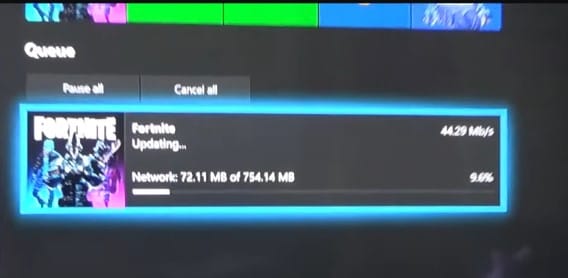
Table of Contents
Why Fortnite Update Gets Stuck at 0%
Before fixing, understand the real causes:
- Server overload with new upgrades.
- Corrupted Epic Games Launcher cache
- Internet connection instability
- Downloads are blocked by a firewall or antivirus.
- Not enough storage space.
- Buggy or obsolete launcher
These are the top proven causes according to the recent 2025-2026 reports.
7 Working Fixes for Fortnite Update Stuck at 0%
1. This solves the issue in many cases.
Steps:
- Close the Epic Games Launcher completely
- Open Task Manager → End all Epic processes
- Relaunch as Administrator
This fixes connection problems between the launcher and servers.
2. Check Fortnite Server Status (Don’t Skip This)
Sometimes the issue is not on your side.
- Visit the Epic Games status page.
- Check Twitter or X for Fortnite server updates.
Updates frequently freeze at 0% owing to server traffic spikes.
3. Clear Epic Games Launcher Cache (2026 Proven Fix)
This is the number-one working fix in recent updates.
Steps:
- Press Win + R.
- Type %localappdata%
Go to:
EpicGamesLauncher > Saved - Delete the WebCache folder
- Restart launcher
Removes corrupted files that prevent updates.
4. Pause and Resume Download
Simple yet effective.
- Click pause.
- Wait 10–15 seconds.
- Resume the download.
Refreshes the connection to update servers.
5. Fix the Internet or switch the network
Even if your internet appears to be functioning normally:
- Restart the router.
- Use Ethernet rather than WiFi.
- Try mobile hotspots.
Updates demand a reliable connection, not just fast surfing speed.
6. Check Storage Space
Fortnite updates are hefty, often exceeding 10GB.
- Ensure you have extra free space.
- Delete unneeded files.
Lack of storage can cause updates to freeze at 0%.
7. Disable Firewall / Antivirus Temporarily
Security software can prevent downloads.
- Disable antivirus temporarily.
- Allow Epic Games Launcher in the firewall.
This often resolves hidden blocking difficulties.
Console Fix (PS5 / Xbox Users)
If you’re using console:
- Restart your console fully.
- Cancel and resume the update.
- Check the system software updates.
Many users indicate that rebooting fixes 0% of stuck issues instantly.
Advanced Fixes (If Nothing Works)
If you are still stuck, try the following:
Verify game files (PC)
- Open Epic Library.
- Click the three dots on Fortnite and then Verify.
To change DNS
Use:
- 8.8.8.8
- 8.8.4.4
Facilitates connection to Epic servers.
Real User Experience (Reddit Insight)
Many players report similar issues:
“Update stuck at 0%… restarting console fixes it temporarily.”
👉 This confirms:
- The issue is common
- Often launcher/server related
- Restart is a reliable temporary fix
Quick Fix Summary (Featured Snippet Optimized)
If your Fortnite update is stuck at 0%, try this:
- Restart Epic Games Launcher
- Delete the WebCache folder
- Check server status
- Restart the internet/router
- Disable the firewall temporarily
- Ensure enough storage
- Verify game files
Final Thoughts
The Fortnite update stuck at 0% issue is frustrating, but in most cases, it’s easy to fix.
👉 The most effective solution in 2026:
- Clear cache + restart launcher
Start with simple fixes first, and you’ll be back in the game quickly.
All fixes above work, but the fastest solution is to hold the Xbox power button to fully restart the console. Once restarted, the Fortnite update usually resumes
FAQs for Fortnite update stuck at 0 percent fix
Why is Fortnite stuck at 0% update?
Because of server overload, corrupted cache, or connection issues.
Is the Fortnite update stuck due to a server problem?
Yes, especially during new seasons or events.
How long should I wait if it’s stuck at 0%?
Wait 5–10 minutes. If no progress, apply fixes.
Does reinstalling Fortnite fix it?
Yes, but only as a last option.