
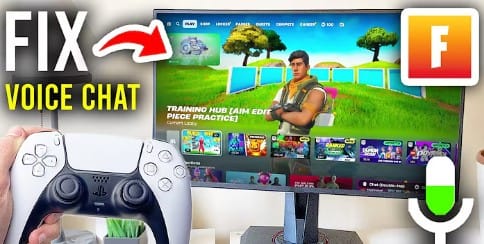
If your Fortnite voice chat does not work, you are not alone. Many gamers on PC, PlayStation, and Xbox experience this problem, particularly after upgrades or configuration changes. Voice chat is critical for teamwork, communication, and winning matches—so when it fails, it can destroy your gaming experience.
What is the good news? Most voice chat issues in Fortnite are simple to resolve.
In this article, you’ll find out why “Fortnite voice chat” isn’t working and how to fix it on PC, PS5, PS4, and Xbox.
Why Fortnite Voice Chat Is Not Working
Before going into repairs, it’s critical to understand the underlying reasons. This allows you to address the problem quickly.
These are the most common explanations:
- Voice chat is disabled in settings
- Wrong microphone or output device selected
- Parental control restrictions
- Network or NAT issues
- Game bugs or recent updates
- Platform-specific privacy settings
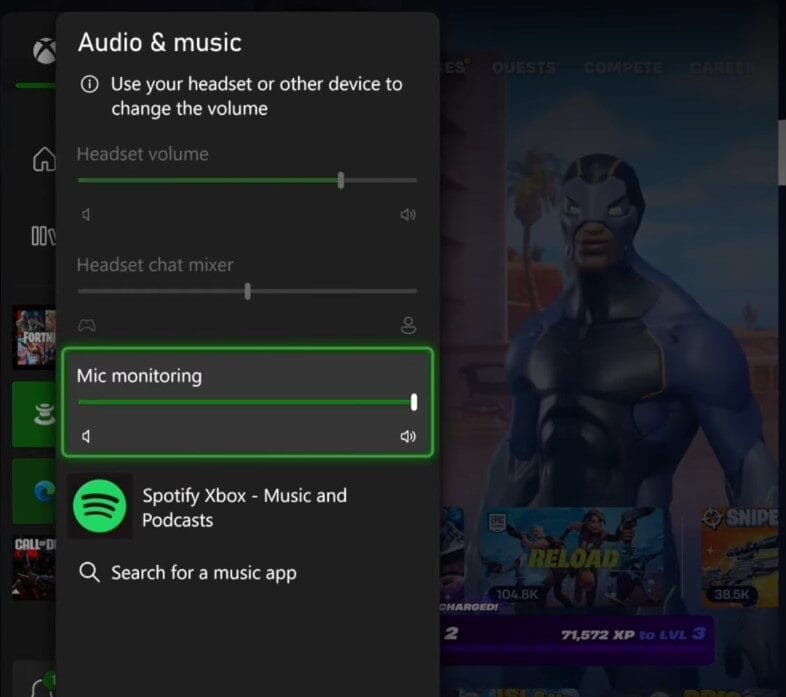
In most cases, it is only a settings issue and not a severe concern. The correct setting is shown in the screenshot below.
Quick Fixes (Try These First)
Start with these simple fixes. This solves the issue for most players.
Restart Fortnite
Sometimes, voice chat bugs are temporary.
Fix:
- Close Fortnite
- Completely restart your device.
- Launch the game again
Check Voice Chat Settings
Many players accidentally disable voice chat.
Fix:
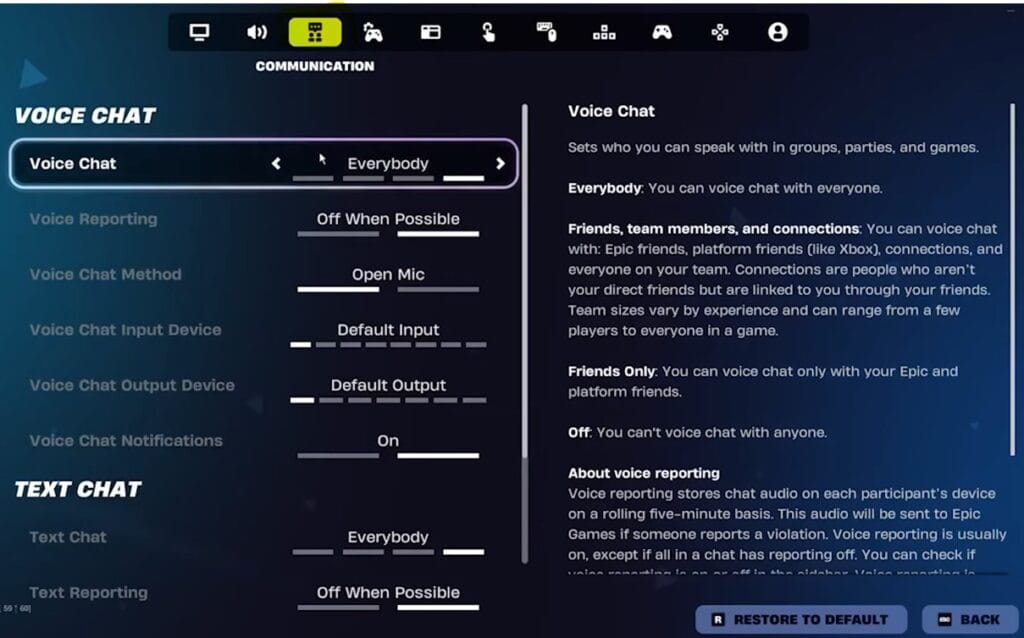
- Open Fortnite Settings
- Go to the Audio tab
- Turn Voice Chat = ON
- Set Voice Chat Method = Open Mic or Push-to-Talk
I have already faced this issue many times and fixed it using these methods.
Set Correct Input Device
If Fortnite is using the wrong microphone, but it won’t work.
Fix:
- Go to Audio Settings
- Select the correct Input Device (your mic)
- Select the correct Output Device (headset/speakers)
Check Internet Connection
Voice chat requires a stable connection.
Fix:
- Restart your router
- Use a wired connection (if possible)
- Avoid high-ping servers
Fix Fortnite Voice Chat Not Working on PC
If you’re running Fortnite on PC, follow these steps carefully:
Set Default Microphone (Windows)
- Right-click the sound icon
- Click Sound Settings
- Go to Input
- Select your microphone as the default
Allow Microphone Access
Sometimes Windows blocks access.
Fix:
- Go to Settings → Privacy → Microphone
- Enable access for apps
- Make sure Fortnite has permission
Update Audio Drivers
Outdated drivers can break voice chat.
Fix:
- Open Device Manager
- Update audio drivers
- Restart PC
- Disable Other Audio Devices
- Too many devices can confuse Fortnite.
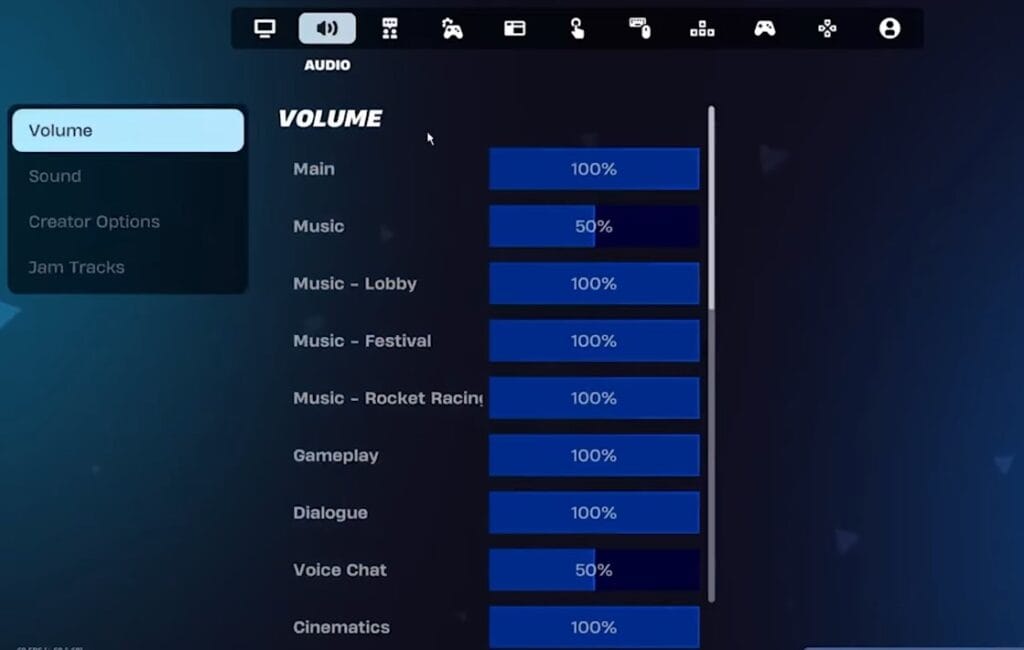
👉 Disable unused microphones and headsets. Take a look at the screenshot below for the correct audio tab’s setting.
Fix Fortnite Voice Chat on PS5 / PS4
PlayStation users mostly face this due to system settings.
Check Controller Mic
- Make sure the mic is not muted
- Check headset connection
Enable Voice Chat in Settings
- Go to Fortnite Audio Settings
- Turn Voice Chat ON
- Select the correct input/output device
Party Chat vs Game Chat
If you’re in PlayStation party chat, Fortnite voice chat will not function.
👉 Switch to Game Chat.
Check Privacy Settings
- Go to PlayStation Settings
- Enable voice communication
Fix Fortnite Voice Chat Not Working on Xbox
Xbox includes additional privacy and network restrictions.
Check Privacy Settings
- Go to Xbox Settings
- Account → Privacy & Online Safety
- Allow communication with others
Check NAT Type
Strict NAT can block voice chat.
Fix:
- Open NAT type (Open/Moderate is best)
- Restart router
Check Headset
- Make sure the headset is properly connected
- Test the mic in Xbox settings
Check Parental Controls & Account Restrictions
This is sometimes neglected yet extremely crucial.
If the voice chat is blocked:
- Check Epic Games parental controls
- Check console restrictions
- Disable voice chat limits
Many players fix the issue instantly after adjusting this.
Advanced Fixes (If Nothing Works)
If basic fixes fail, try these steps:
Reset Audio Settings
- Reset Fortnite audio settings to default
Reinstall Fortnite
- Delete and reinstall the game
- Fixes corrupted files
Update Fortnite
- Make sure you’re on the latest version
Change Server Region
- Switch to Auto or the nearest region
Conclusion
The Fortnite voice chat not working issue is frustrating, but in most cases, it’s easy to fix. Whether you’re on PC, PS5, or Xbox, the problem usually comes down to settings, permissions, or minor bugs. Start with quick fixes like checking voice chat settings and devices, then move to platform-specific solutions if needed.
👉 Follow this guide step by step to get your voice chat back in no time.
FAQs for fixing Fortnite Voice Chat
Why can I hear but not talk in Fortnite voice chat?
This usually happens when your microphone is not selected correctly or your input volume is too low. Make sure the correct input device is selected in Fortnite audio settings and that your mic is not muted.
How do I enable voice chat in Fortnite on PC, PS5, and Xbox?
Go to Settings → Audio → Turn Voice Chat ON. Then select the correct input and output devices. On consoles, also make sure voice chat is allowed in system privacy settings.
Why is my mic not working only in Fortnite, but it works in other apps?
This happens when Fortnite is using the wrong input device. Set your microphone as the default device in both your system settings and Fortnite audio settings.
Is Fortnite voice chat down today or not working for everyone?
Fortnite voice chat servers can occasionally have issues, but most problems are caused by incorrect settings, network issues, or device configuration rather than server downtime.
How to fix Fortnite voice chat not working on PS5?
Check if your controller mic is muted, switch from party chat to game chat, and enable voice chat in Fortnite settings. Also, verify your PlayStation privacy settings allow communication.
Why is Fortnite voice chat not working after the update?
Game updates can reset audio settings or introduce bugs. Recheck your voice chat settings, input device, and restart the game after updating.
How to fix Fortnite voice chat not working with friends?
Make sure you are in the same voice channel (party or game chat), your friends are not muted, and your privacy settings allow communication with others.