
Last updated on 5 April, 2026.
If Fortnite is stuck on the connecting screen in Chapter 5, the most typical causes are server unavailability, internet problems, or corrupted game files. You can resolve the issue by restarting the game, checking the server status, switching networks, or verifying game files on a PC or console.
If you’re also facing communication issues during gameplay, check out our detailed guide on Fortnite Voice Chat Not Working Fix (2026 Guide) to solve voice-related problems alongside connection errors.
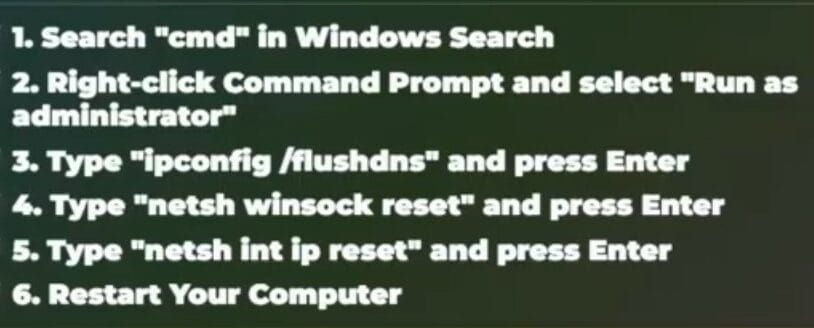
Let’s take it step by step and fix it properly. I have prepared 4 methods I have already applied, and they are working; one is right below
- Why Fortnite is Stuck on the Connecting Screen in Chapter 5
- Check Fortnite Server Status First (VERY IMPORTANT)
- Quick Fixes for Fortnite Connecting Screen Issue
- 10 Detailed Fixes (Step-by-Step)
- Fix 1: Restart Game & Device
- Fix 2: Check Internet Stability
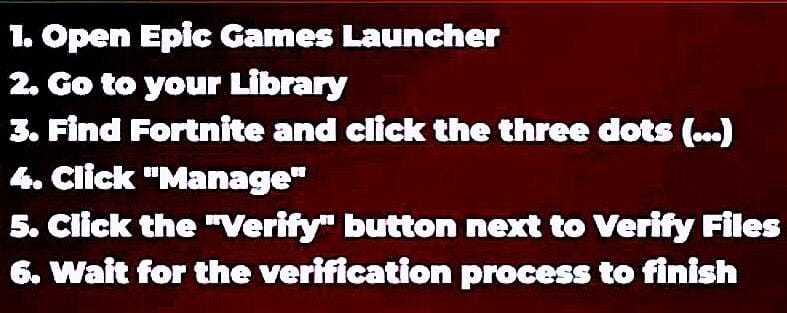
- Fix 3: Verify Game Files (PC)
- Fix 4: Clear Cache (Console Fix)
- Fix 5: Change DNS Settings
- Fix 6: Disable Background Apps
- Fix 7: Update System Software
- Fix 8: Reinstall Fortnite
- Fix 9: Change Matchmaking Region (IMPORTANT)
- Fix 10: Wait During Chapter 5 Updates
- Fortnite Stuck on Connecting Screen on Different Devices
- Is Fortnite Down Right Now?
- Fortnite Connecting Issues in Different Regions
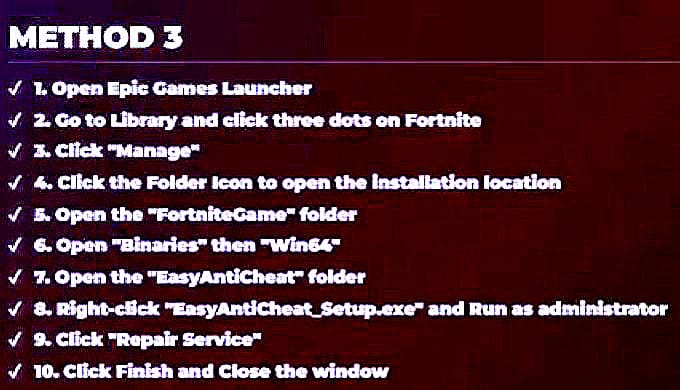
- When Nothing Works: Advanced Fixes
- Conclusion
- FAQs for Fortnite is Stuck on the Connecting Screen
- Why is Fortnite stuck on the connecting screen in Chapter 5?
- Is Fortnite stuck on the connecting screen, a server problem, or my issue?
- How long does the Fortnite connecting screen last?
- Can bad internet cause Fortnite to get stuck on connecting?
- Why does this happen more during new updates or Chapter releases?
- Does VPN cause Fortnite connecting issues?
- Why is Fortnite stuck on connecting on PS5 or Xbox?
- How do I fix the Fortnite connecting screen on PC?
- Can corrupted game files cause this issue?
- Should I reinstall Fortnite to fix the connecting screen?
- Why does Fortnite work after a restart but not later?
- Is this problem common in Chapter 5?
- What is the fastest fix for the Fortnite connecting screen?
- Can DNS settings fix Fortnite connection problems?
- When should I stop troubleshooting and just wait?
Why Fortnite is Stuck on the Connecting Screen in Chapter 5
There is more than one reason for this difficulty. Typically, it occurs because of:
- Server Overload Following Updates or Events
- Weak or unreliable internet connections
- corrupted or missing game files.
- DNS or network conflicts.
- Device-specific bugs (PC, PlayStation, and Xbox)
Connection-related issues have increased in frequency since Chapter 5, which included significant improvements.
Check Fortnite Server Status First (VERY IMPORTANT)
Before you try any remedies, make sure the problem isn’t on the server side.
Sometimes an issue is absolutely beyond your control.
Get updates from Epic Games.
If the servers are down, even the best configuration will be ineffective.
What To Do:
- Visit the Epic Games server status page.
- Check the official notifications on social media.
- Wait if the servers are under maintenance.
If servers are down, the only solution is patience.
Quick Fixes for Fortnite Connecting Screen Issue
Try these first; they solve the problem in many cases:
- Restart Fortnite
- Restart your device (PC/console)
- Switch internet (WiFi → mobile hotspot)
- Turn OFF VPN
- Update Fortnite to the latest version
If the issue continues, move to advanced fixes below.
10 Detailed Fixes (Step-by-Step)
Fix 1: Restart Game & Device
This clears temporary glitches.
- Close Fortnite completely
- Restart your PC / console
- Launch the game again
Simple but very effective.
Fix 2: Check Internet Stability
Fortnite needs a stable connection.
- Run a speed test
- Restart your router
- Use a wired connection (LAN) if possible
High ping or packet loss = stuck connecting screen.
Fix 3: Verify Game Files (PC)
If you’re on PC, use:
Epic Games Launcher
Steps:
- Open Epic Games Launcher
- Go to the Library
- Click the 3 dots on Fortnite
- Select Verify
This fixes corrupted files automatically.
Fix 4: Clear Cache (Console Fix)
PlayStation / Xbox:
- Turn off the console
- Unplug the power for 1–2 minutes
- Restart system
This clears the temporary system cache.
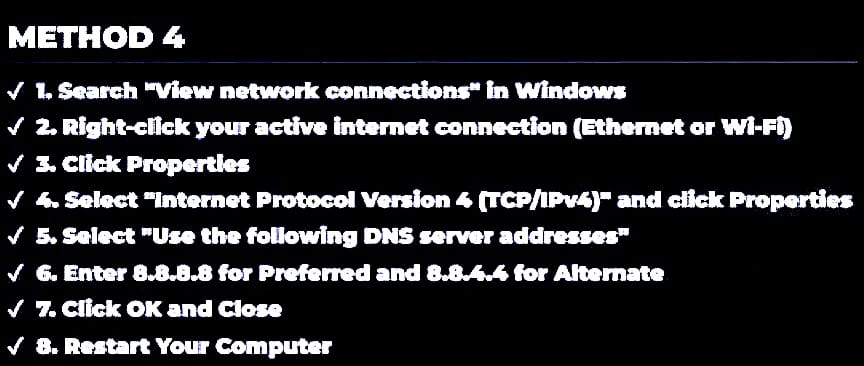
Fix 5: Change DNS Settings
Sometimes your ISP causes delays.
Use Google DNS:
- 8.8.8.8
- 8.8.4.4
This improves connection stability.
Fix 6: Disable Background Apps
Apps using the internet in the background can interfere.
- Close downloads
- Stop streaming apps
- Disable overlays (Discord, etc.)
Fix 7: Update System Software
Outdated systems cause compatibility issues.
- Update Windows / PS5 / Xbox
- Restart after update
Fix 8: Reinstall Fortnite
If nothing works:
- Uninstall Fortnite
- Reinstall a fresh copy
This removes deep file issues.
Fix 9: Change Matchmaking Region (IMPORTANT)
This is one of the most overlooked fixes.
- Go to Settings → Game
- Set matchmaking region to Auto
- Or choose the lowest ping manually
Players in Asia (like Singapore, India, Pakistan) often face this issue due to server routing.
Fix 10: Wait During Chapter 5 Updates
During big updates, servers get overloaded.
In this case:
- Wait 10–30 minutes
- Try again later
Fortnite Stuck on Connecting Screen on Different Devices
PC (Windows)
- Verify game files
- Update drivers
- Disable background apps
PlayStation (PS4 / PS5)
- Clear cache
- Check PSN status
- Restart console
Xbox (Series X/S)
- Power cycle console
- Check Xbox Live status
- Reinstall if needed
Is Fortnite Down Right Now?
Sometimes the issue isn’t your fault.
Fortnite servers may be:
- Overloaded due to events
- Under maintenance
- Facing outages
Always check before troubleshooting, as of 4-4-2026, all major systems: login, matchmaking, and voice chat function normally. While there was a planned outage on March 19, 2026, for a big update, servers are currently back up.
Fortnite Connecting Issues in Different Regions
Your location also affects the connection.
Asia (Singapore, India, Pakistan)
- Higher ping
- Server routing delays
Europe
- Usually stable but spikes during events
North America
- Heavy traffic during updates
Solution:
- Use Auto region
- Avoid peak hours
When Nothing Works: Advanced Fixes
If the issue persists:
- Enable port forwarding
- Adjust firewall settings
- Contact Epic Games support
These are advanced steps that can solve rare issues.
Conclusion
The most common cause of this problem is server overload, particularly during new upgrades or events where thousands of users attempt to log in at the same time. Epic Games servers sometimes struggle to handle high traffic, resulting in connection delays or login failures.
However, not all issues are server-related. Sometimes the issue stems from your end, such as an inconsistent internet connection, corrupted game files, outdated drivers, or wrong network configuration.
Key Takeaway:
- Always check the server status first.
- Then, try short remedies such as restart, internet switch, or file verification.
- Use advanced fixes only if the problem persists.
In most circumstances, you can remedy the problem within minutes—and if not, it usually resolves itself after servers stabilize.
FAQs for Fortnite is Stuck on the Connecting Screen
Why is Fortnite stuck on the connecting screen in Chapter 5?
This usually happens due to server overload, internet issues, or corrupted files. During new seasons or updates, servers often struggle with high traffic, causing connection problems.
Is Fortnite stuck on the connecting screen, a server problem, or my issue?
It can be both:
–Server issue: nothing you can do except wait
–User-side issue: fix the internet, restart the device, and verify files
Most of the time, it’s server-related during updates.
How long does the Fortnite connecting screen last?
Normally:
-5–20 seconds
If it takes:
-More than 1–2 minutes → something is wrong
Can bad internet cause Fortnite to get stuck on connecting?
Yes. A weak or unstable connection can prevent Fortnite from connecting to servers properly, leading to infinite loading.
Why does this happen more during new updates or Chapter releases?
Because millions of players log in at the same time, it overloads servers and causes connection errors.
Does VPN cause Fortnite connecting issues?
Yes. VPNs can:
-Increase ping
-Block connections
-Cause login failures
Always disable VPN while playing.
Why is Fortnite stuck on connecting on PS5 or Xbox?
Common reasons:
-Console cache issues
-Server downtime
-Network problems
Clearing the cache and restarting usually helps.
How do I fix the Fortnite connecting screen on PC?
Best fixes:
-Verify game files
-Update drivers
-Disable background apps
-Change DNS
Can corrupted game files cause this issue?
Yes. If files are missing or corrupted, Fortnite cannot load properly and may freeze on connecting.
Should I reinstall Fortnite to fix the connecting screen?
Only as a last option. Reinstalling helps if:
-Files are badly corrupted
-Nothing else works
Why does Fortnite work after a restart but not later?
This usually indicates:
-Cache issue
-Background app conflict
-Temporary server sync issue
(Also commonly reported by players in forums.)
Is this problem common in Chapter 5?
Yes. Connection issues are very common after:
-New chapters
-Major updates
-Live events
What is the fastest fix for the Fortnite connecting screen?
The fastest working method:
-Check server status
-Restart game
-Switch internet
Can DNS settings fix Fortnite connection problems?
Yes. Using public DNS like:
-8.8.8.8
-8.8.4.4
can improve connection stability.
When should I stop troubleshooting and just wait?
If:
-Servers are down
-Many players report the issue
Then stop troubleshooting, it’s not your fault.














I found this article quite helpful. Looking forward to more content like this.
I appreciate your kind words! Is there any topic you’d like me to cover next? I always try to explain even difficult things in the easiest way possible.
Great post! Really enjoyed reading this. Keep up the excellent work!
Thank you so much! Glad you enjoyed it.